Calls
Make personal or group calls in YuChat. All calls support two modes:
 Locked — Only invited participants can join. Not visible in the workspace Calls section. Recording and transcript are private to participants.
 Unlocked — Any workspace member can join. Visible to everyone in the Calls section. Recording and transcript are private to participants.
Personal Calls
Start a personal call from:
-
Quick Actions panel — Click Start Personal Call, select colleagues, click Call
-
Address Book — Go to Contacts, find a colleague, click Call
-
Channel chat — Click a profile photo, then click Call in the profile card
Missed Personal Call Statuses
YuChat distinguishes unanswered personal calls by their direction:
- when you do not answer an incoming call, the chat shows Call missed with You missed this call;
- when nobody answers your outgoing call, it shows Call unanswered with No one answered your call.
For a channel call that nobody joins, the neutral Call missed status remains.
Group Calls
- Click Start Personal Call in the Quick Actions panel
- Select multiple colleagues
- Click Call
Scheduled Calls
The  Scheduled Calls section lets you organize and manage upcoming calls.
Features:
- View upcoming calls by today, week, month, or year
- Create and edit scheduled calls
- Export to ICS format for Outlook, Google Calendar, etc.
Scheduled calls start automatically at the set time—the server handles it. Participants receive a notification and can join.
Per the role model:
- Owners/Administrators — Can schedule channel calls and personal calls
- Members — Can only schedule personal calls
To schedule a call:
- Go to Scheduled Calls
- Click

- Enter a call name
- Select type:
- Channel Call — Choose the channel (Administrators/Owners only)
- Personal Call — Select participants
tip
Enable Hide Call to make it private
- Set date and time
- (Optional) Enable Repeat for recurring calls
- Add a description
- Click
 to save
To edit a scheduled call:
- Find the call in the list
- Click to open it
- Click

- Make changes and click
Call Links
Personal Call Link
Share your personal call link:
- Go to
 My Calls
 - Open the Call by Link tab
- Copy and share the link
When someone clicks it, you'll receive the call.
Anyone with the link can join, even without a YuChat account.
Call Rooms
A call room is a dedicated space for regular or one-time meetings, accessible via a permanent link.
Features
- Create rooms within a workspace
- Add descriptions for clarity
- Set access levels:
- Public — Visible to all workspace members
- Private — Only visible to current participants; join via link only
- Shareable link
Creating a Room
- Go to My Calls
- In the Call by Link tab, click Create Room
- Add a description and select Public or Private
- Set link expiration:
1 day,7 days,30 days, orPermanent -
Choose Room Access:
- All (including guests) — Anyone, even without YuChat. Great for webinars.
- Registered Users — YuChat account required. Basic identity verification.
- My Organization — Your company only. For internal meetings.
- My Workspace — Current workspace only. Most restrictive.
- Click Create
- Copy and share the link
Room creators won't receive notifications when calls start, but can see active calls in Calls.
Joining a Room
You need the link to join. Only share it with intended participants.
Click the link shared by the room creator or someone with access.
Managing Rooms
From the room list in My Calls:
- Enter — Join or start a call
- Delete — Remove the room (link becomes invalid)
- Edit — Change settings
- Copy Link — Share with participants
- Close — Close the panel (room stays active)
Editing a Room
- Go to My Calls
- Click the room in the Rooms section
- Click Edit
- Update settings and click Save
Use Cases
Permanent Project Room Create a room like "CRM Project Room" with a saved link. Team members join anytime without searching for the right chat.
External Participants For meetings with clients or candidates: create a room, send the link—they connect via browser without installing YuChat.
Irregular Meetings For meetings that happen as needed: create a room like "Reports Discussion" and use the same link whenever needed.
Cross-Team Collaboration For people across different channels: create a room like "Frontend/Backend Sync" to gather specific team members.
Document Coordination Need to review a document with multiple departments? Create a room like "Quarterly Report" and everyone joins via one link.
FAQ
Can I invite people without YuChat? Yes, they can join via browser.
Can I reuse rooms? Yes, the link stays active until you delete the room.
How are rooms different from regular calls? Rooms have permanent links and don't require participants to be in the same workspace.
Public Calls
Join any public call in your workspace from the Calls section at the bottom of the main menu. Click Join to enter.
Pin Participant
In group video calls, pin a participant to keep them in the foreground. This is useful for following the active speaker or presenter — even when someone else is sharing their screen.
To pin a participant:
- Actions menu: Hover over the participant, click
 , and select Pin.
 - Double-click: Double-click the participant's video tile.
Use the same actions to unpin.
- Only one participant can be pinned at a time.
- The pinned participant stays in the foreground during screen sharing.
Call Controls
The control panel appears during every call:
Main controls


- Microphone
 |
| 
- Speaker
 |
|  — Control background music and participant audio
 - Camera
 |
| 
- Screen share
 |
| 
- Invite
 — Add participants
 -
Raise hand
 — Signal you want to speak
-
React
 — choose any reaction during a call
- Chat
 — Open text chat (fullscreen mode only)
tip
— Open text chat (fullscreen mode only)
tipToggle fullscreen with

- Settings
 :
:
- Visual effects
- Picture-in-Picture
- Switch camera/microphone/speaker
- Leave or end call
Permissions by Role
Roles:
- Initiator — Call creator with full access
- Workspace member — Extended rights
- YuChat user — Has an account but not in this workspace
- Guest — External user via link
All Participants
- All control panel features
- Request camera/microphone — Hover over a participant, click
Initiators and Workspace Members
- Change call mode — Locked or Unlocked
- Invite participants — Via or external link
- Change call name
info
Call names are auto-generated by AI based on discussion topics. Edit them after the call in Call Recordings.
Initiator Only
- End call for everyone — In the Leave menu
- Remove participant — → Remove Participant
- Mute participant — → Turn Off Camera or Turn Off Microphone
- Transfer ownership — → Make Administrator
Call Recordings
Access recordings and transcripts in Call Recordings.
Recording is automatic. Paid plans can toggle recording during calls. Transcripts are available immediately after.
You can only access recordings for calls you participated in, or channel calls where you're a member.
Viewing Recordings
- Go to Call Recordings
- Select a recording and click

Meeting Notes
AI generates a summary of key topics for each call.
- Go to Call Recordings
- Hover over Meeting Notes

Any participant (or anyone with recording access) can edit the notes.
Notes are shared across all participants.
Sharing Recordings
- Go to Call Recordings
- Select a recording and click
 (or right-click)
 - Copy and share the link
Anyone with the link can download the recording, transcript, and notes.
Transcripts
- Go to Call Recordings
- Find the recording
- Click View Transcript
You can save transcripts as PDF via  Download Transcript.
Picture-in-Picture
Continue calls in a compact window while using other apps.
Configure in Settings → Calls
To enable:
- Open Settings in the control panel
- Select Picture-in-Picture
Available controls:
- Microphone toggle
- Camera toggle
- Raise hand
- Participant call reactions
- Screen sharing
- Exit Picture-in-Picture
When starting screen sharing from the PiP widget, the main application window opens automatically for source selection
The window stays on top, can be moved and resized, and supports instant return to fullscreen.
Screen Sharing
- Click (or → Show Screen on mobile)
- Choose:
- Tab — Browser tab only
- Window — Any application
- Full Screen — Entire display
Mobile: Allow screen capture when prompted. Rotate horizontally and tap the shared area for fullscreen viewing.
Tips:
- Grant permissions when prompted
- Close unnecessary tabs for better performance
- Hide sensitive data before sharing
- Scroll to zoom in/out
- Drag to pan
- Use + / - buttons in the corner
Share Audio During Screen Sharing
During a call, you can share your screen together with audio from the source you are presenting. Participants hear both your voice and the sound from the app, window, browser tab, or screen you share.
This is useful when you need to:
- run a presentation or training session with audio;
- show a video, recording, webinar, or other media content;
- review an app, website, or media material together with colleagues.
Availability
- YuChat desktop app: macOS and Windows 11.
- Web app: audio sharing availability depends on the browser and the selected sharing source.
How to share audio
- During an active call, click Screen Sharing.
- Select the screen, window, or tab you want to share.
- If the audio sharing option is available in the source picker, enable it before starting the share.
- Start screen sharing.
Audio sharing option when presenting your screen
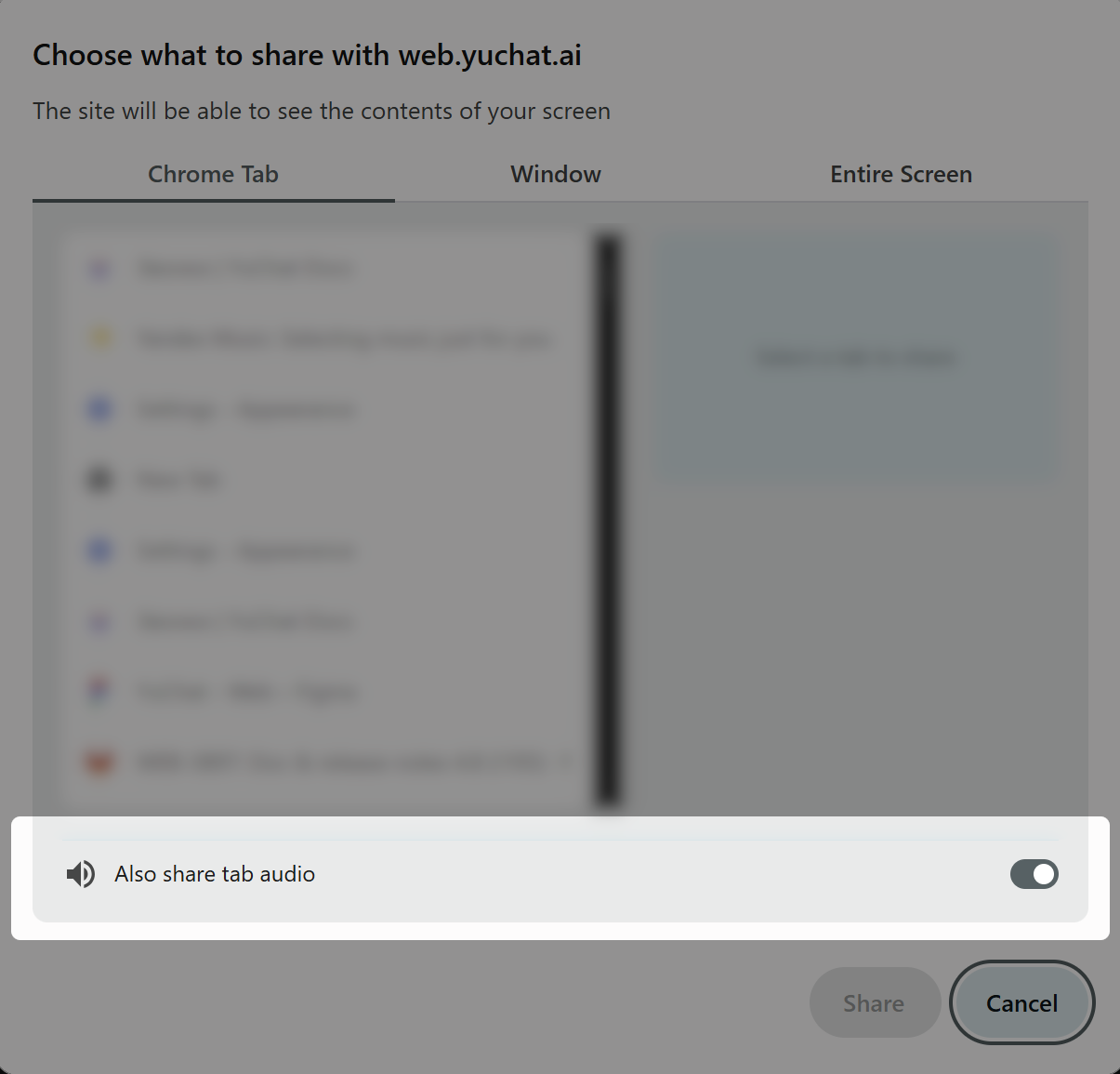
If you are showing a video, an audio-enabled presentation, or an app that plays sound, enable audio sharing in the source picker before you start presenting.
Audio sharing availability depends on your platform, app version, and selected sharing source. If the audio toggle is not shown, try another source or use the YuChat desktop app on macOS or Windows 11.