Channels
Channels are group chats within a workspace.
YuChat supports three channel types:
- Private
 — Only administrators or owners can add members.
 - Public
 — Open to all workspace members. Anyone can join. New members are automatically added to the general channel.
 - Announcement
 — Visible to all workspace members, but only administrators and owners can post messages.
Creating Channels
Create a Public Channel
- In the Channels section, click Add Channel
- Enter the channel name
- (Optional) Add a description
- (Optional) Enable Automatically add all workspace participants
- Click Create
- Select colleagues and click Invite
Create a Private Channel
- In the Channels section, click Add Channel
- Enter the channel name
- Enable Private Channel
- Click Create
- Select users and click Invite
Create an Announcement Channel
- In the Channels section, click Add Channel
- Enter the channel name
- Enable Announcement Channel
- Click Create
- Select users and click Invite
Adding Members
- Click the participant count below the channel name
- Select Add People
- Choose a user and click Invite
Joining a Channel
To join a public channel:
- Go to Channels
- Click All
- Search for the channel
- Click Join
To join a private channel, ask the owner for an invitation link.
Removing Members
- Select the channel
- Click the participant count below the channel name
- Click All
- Select the member and click Remove
Pinning Channels
Pin important channels to keep them at the top of your list. To pin or unpin, use the Main Menu or Context Menu.
Organizing Channels with Folders
Group channels into folders for easier navigation:
Creating a folder:- Click
 in the Channels and Chats panel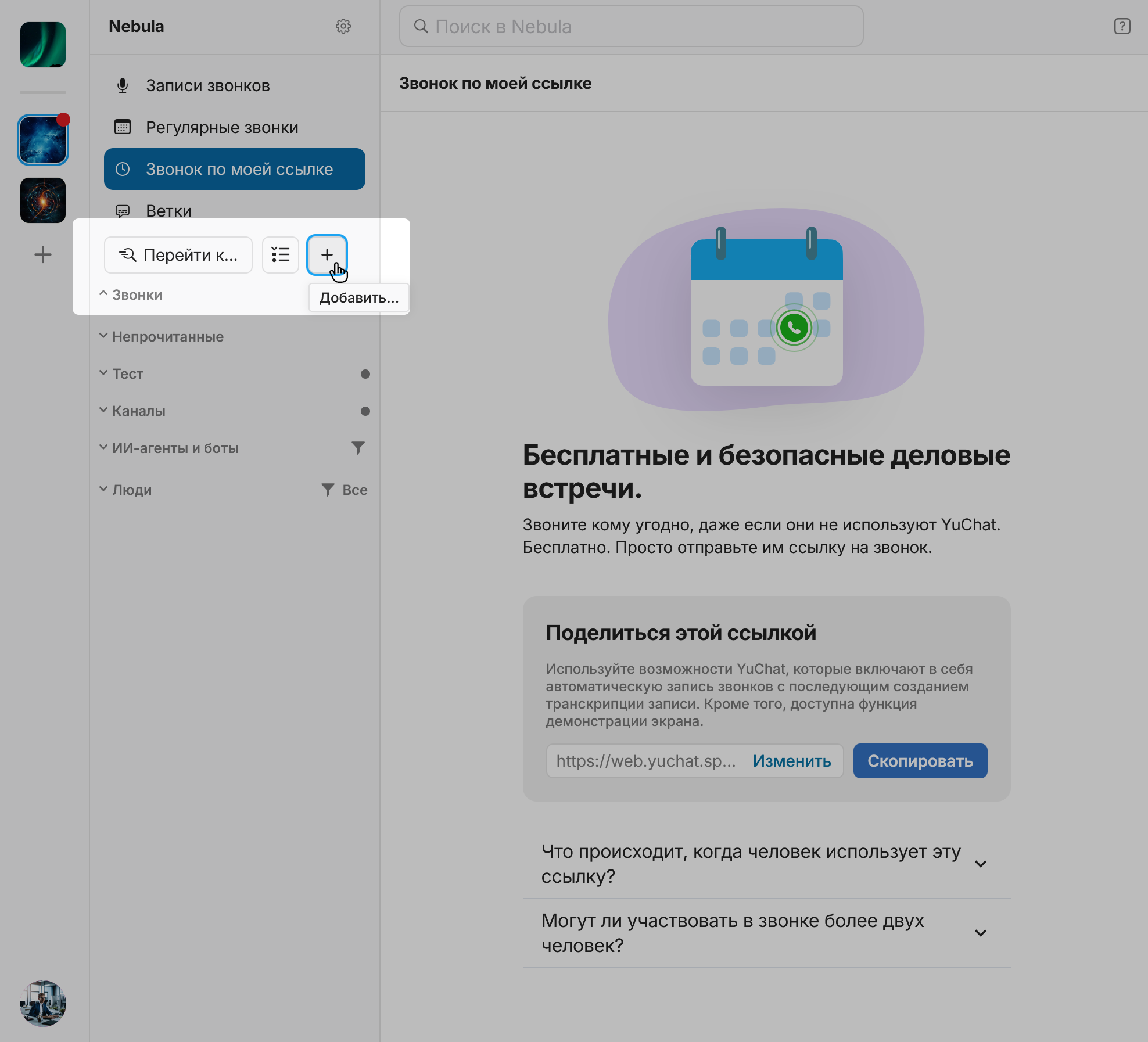
- Enter a folder name and select channels to include
- Click Create

Editing folders:
-
Open Channels and Chats
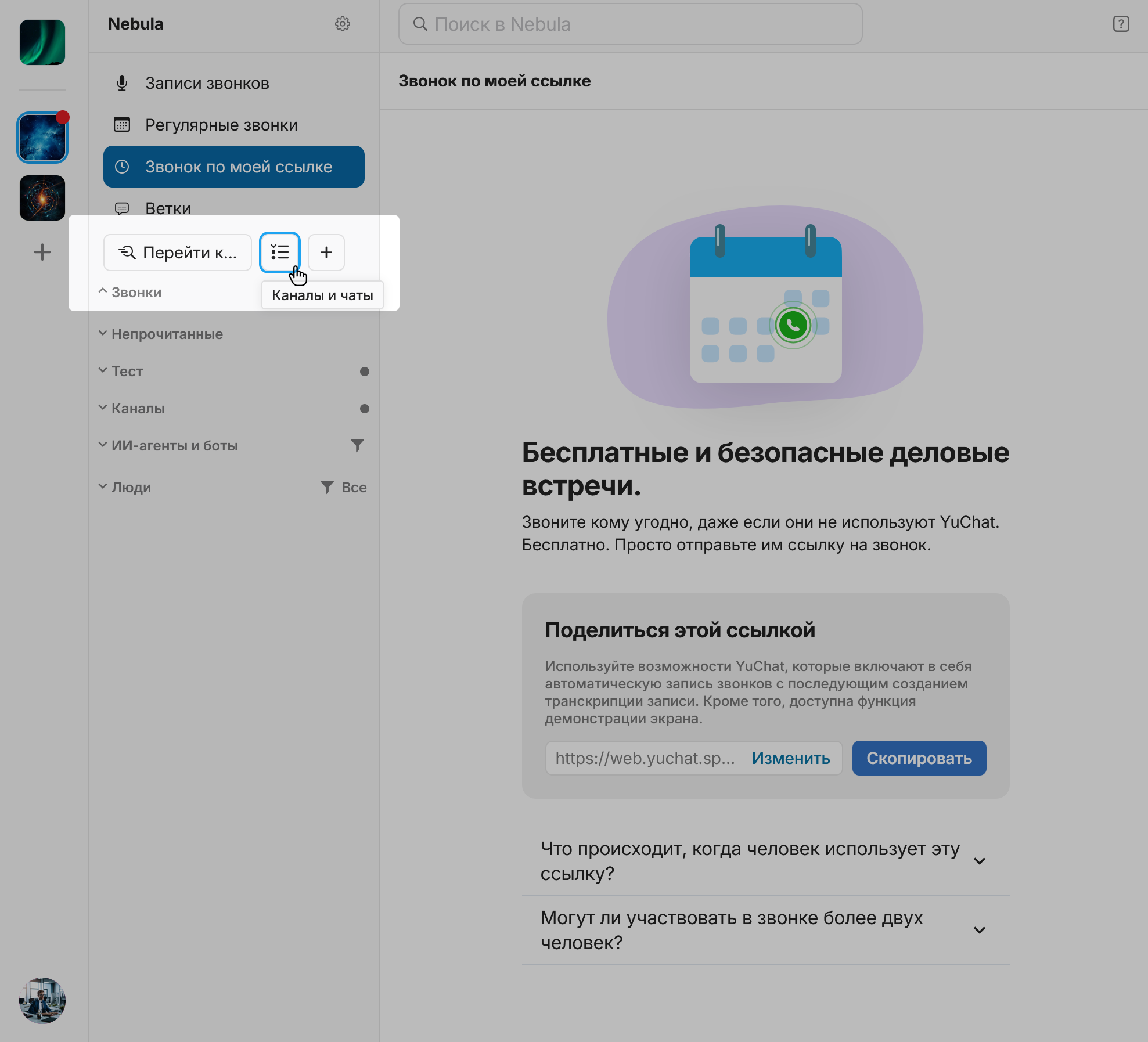
- Go to the Folders tab
- Use Edit Folder or Delete Folder buttons next to each folder
- Green indicator
 — active call in one of the folder's channels
 - Gray indicator
 — unread messages
Creating a "Favorites" Folder
Create a personal storage space for important messages, files, and links:
Setup
-
Create a folder — Click Add... and name it Favorites
-
Add a personal channel — Create a private channel (e.g., Saved) and add it to your folder
Usage
✔ Save items — Forward messages here or send files and links directly
✔ Quick access — Find attachments in the Attachments section via the Channel Menu
✔ Stay organized — Use hashtags and search to find what you need
Main Channel Menu
To open:
- Open the channel and click the participant count below the channel name
You can also right-click to open the context menu.
Available options:
- Add Description (Administrators/Owners only)
- Pin/Unpin
- Attachments
- Notification Settings
- Rename (Administrators/Owners only)
- Make Private (public channels only)
- Add People
- Manage Member Roles (Administrators/Owners only)
- Leave Channel
- Archive Channel (Administrators/Owners only)
Context Menu
Right-click any channel in the list to access:
- Pin/Unpin
- Disable Notifications
- Notification Settings
- Channel Settings
- Move to → Select Folder or Create New
- Copy Channel Link
- Call Link in Channel
- Leave Channel
Channel Settings
Channel settings open in a dedicated window with a side menu, in the same style as the app and workspace settings. All channel options are grouped in one place and split into sections.
To open them, choose Channel Settings from the channel context menu.
The window includes sections for:
- general channel options — name, description, and channel type
- channel notification settings
- managing members and their roles
- viewing the channel's files and documents
The available sections and actions depend on your channel role.
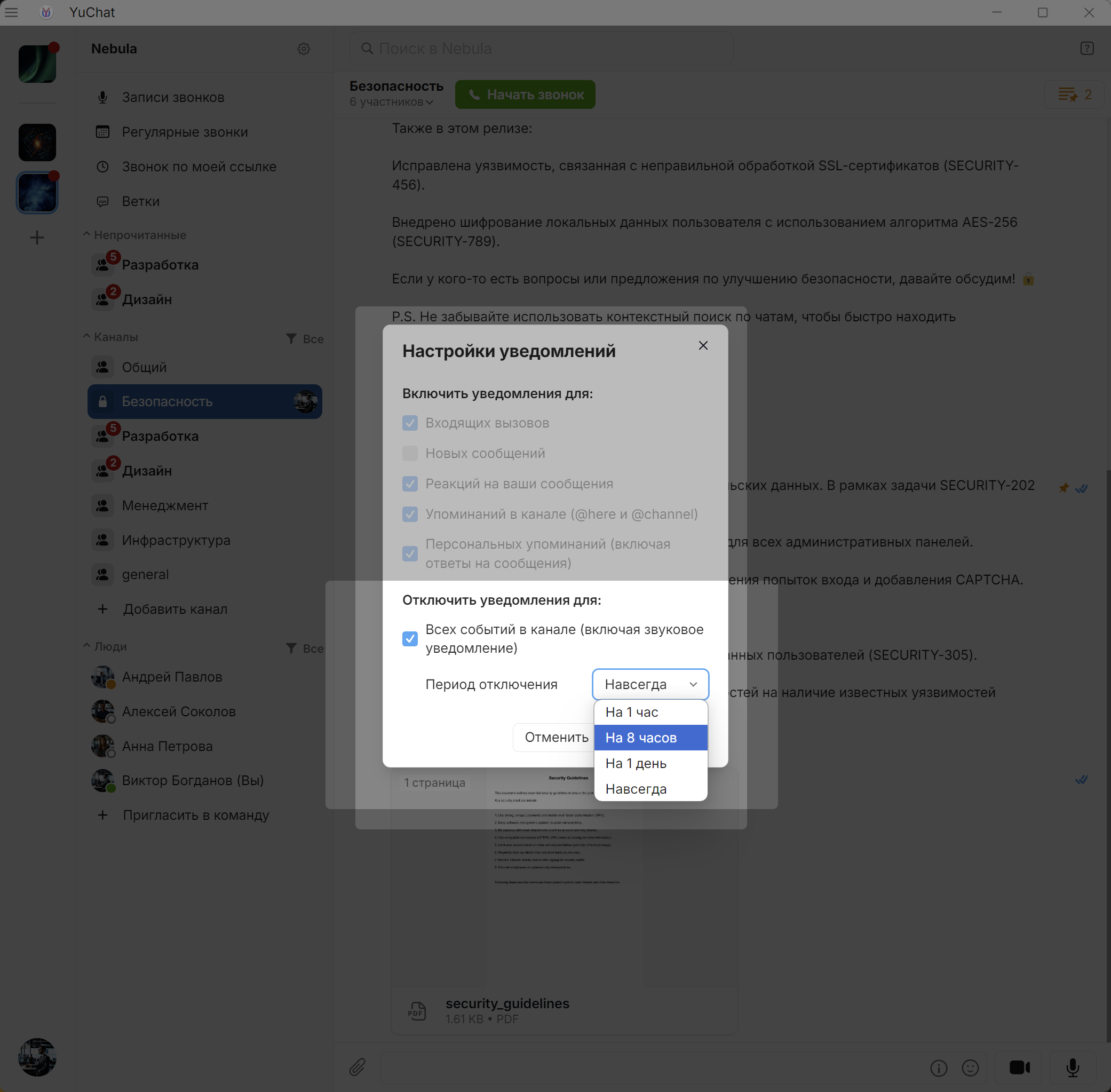
Notification Settings
By default, you receive notifications only for mentions, calls, and replies to your messages.
To customize notifications:
- Open channel settings via the Context Menu or Main Menu
You can configure notifications for:
- Incoming calls
- All channel messages
- Reactions to your messages
- Personal mentions
- Channel-wide mentions (@channel @here)
You can also disable all notifications for a channel.
Choose how long to disable notifications
Enabling notifications for all messages includes thread messages, even threads you haven't joined. All new thread messages also appear in the Threads section.
With notifications disabled, you won't receive alerts, but unread message counts  still appear on channel names.
If a channel has unread mentions, the @ indicator next to the channel name still appears even when the channel is fully muted. This is a separate list indicator, not a sound or push notification. You can hide it in Interface settings.
OS-Level Notification Settings
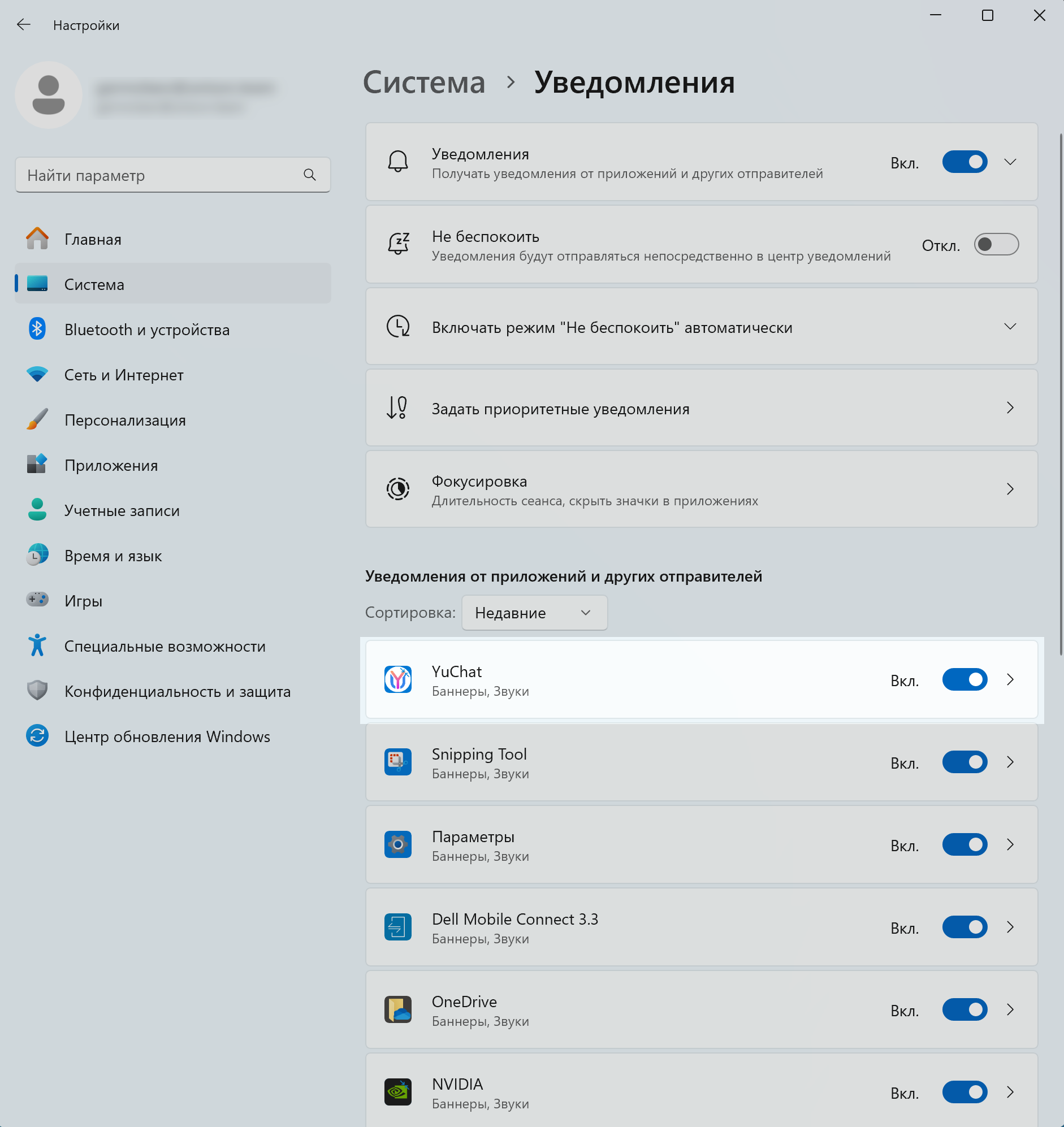
YuChat integrates with your operating system's notification center. Configure notifications through system settings for full control.
- Windows
- macOS
- Open Settings
- Go to System → Notifications
-
Find YuChat in the app list
-
Available settings:
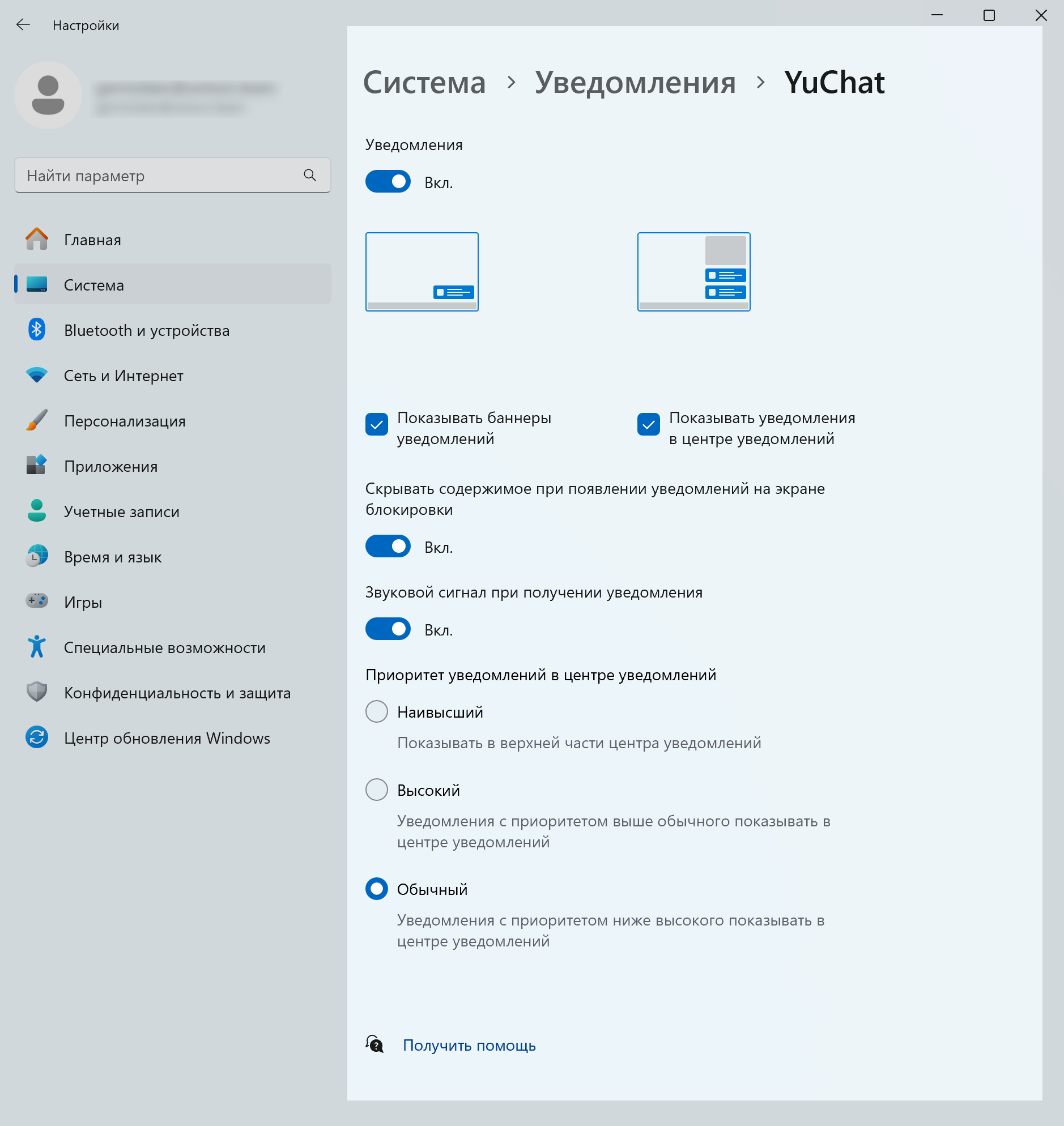
- Enable/disable notifications
- Show banners and/or Notification Center entries
- Show on lock screen
- Open System Settings
- Go to Notifications
- Find YuChat in the app list
-
Available settings:
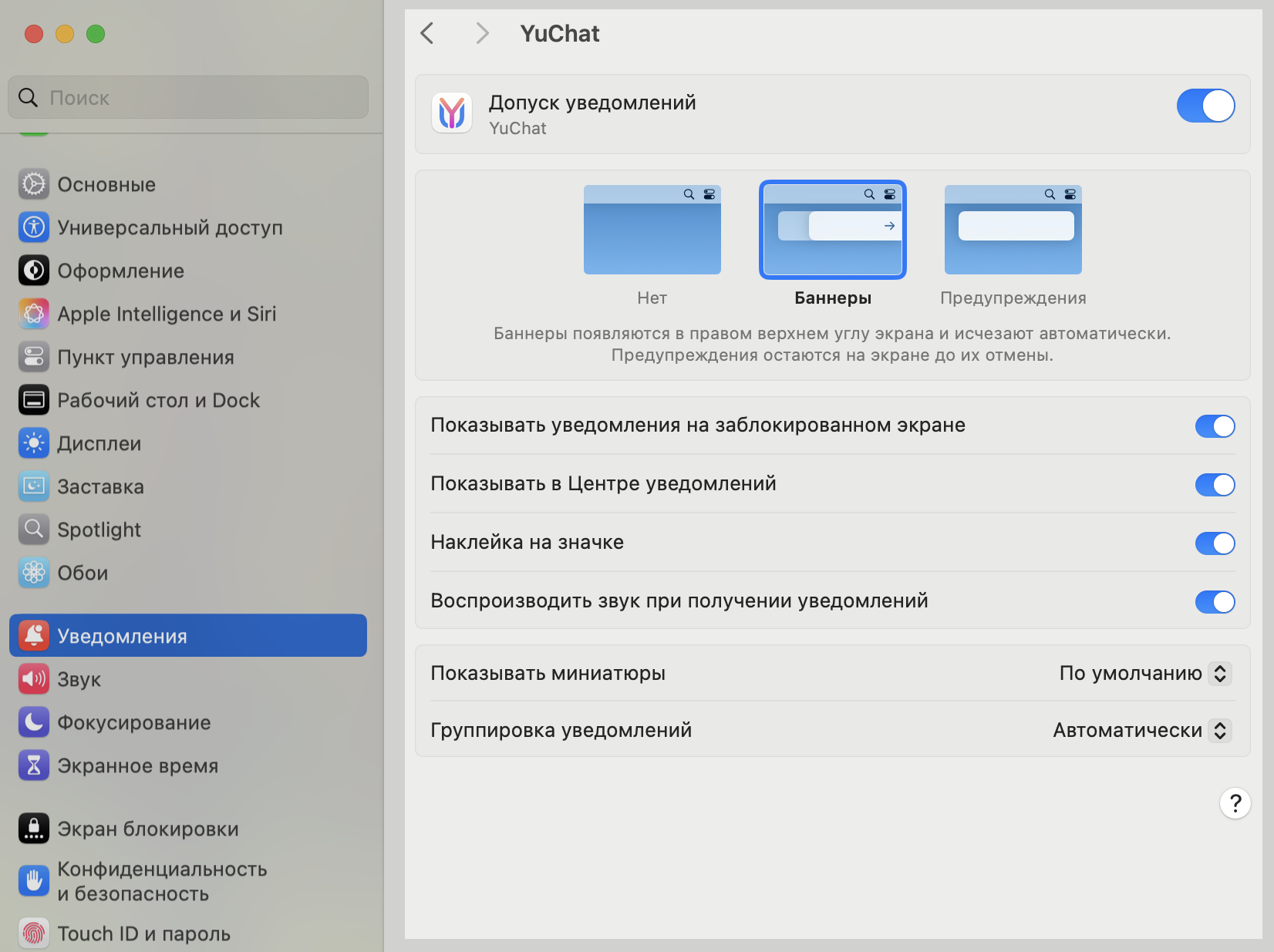
- Allow Notifications
- Notification style (banner or alert)
- Show in Notification Center
Viewing Attachments
- Click the participant count below the channel name
- Select Attachments
- Filter by type:
- Images
- Links
- Documents
- Audio/video messages
- Files
Leaving a Channel
- Click the participant count below the channel name
- Select Leave Channel
- Click Confirm
Making a Channel Private
- Click the participant count below the channel name
- Select Make Private
- Click Confirm
After making a channel private, new members can only join by invitation.
Renaming a Channel
- Click the participant count below the channel name
- Select Rename Channel
- Enter the new name
- Click Confirm
Only channel administrators or owners can rename channels.
Managing Member Roles
Owners and administrators can change channel member roles:
- Click the participant count below the channel name.
- On the right side of the block with the participant count and avatars, click All.
- In the participant list that opens, select the required role from the dropdown to the right of the participant's name. Available roles: Administrator, Owner, Participant.
- Confirm the change by clicking Change Role.
Browsing All Channels
- Go to Channels
- Click All
Searching for Channels
- Go to Channels
- Click All
- Enter the channel name in the search bar
- Click Open
Use  Filter List to quickly find channels matching your search.
Archiving Channels
- Open the channel
- Click the participant count
- Select Archive Channel and confirm
Archived channels can only be restored by system administrators.
Viewing Archived Channels
- In Channels, click All
- Go to the Archived Channels tab
Available actions:
- View: Open and read archived channel content
- Restore: Owners and administrators can restore archived channels