Frequently Asked Questions
How to enable push notifications in browser?
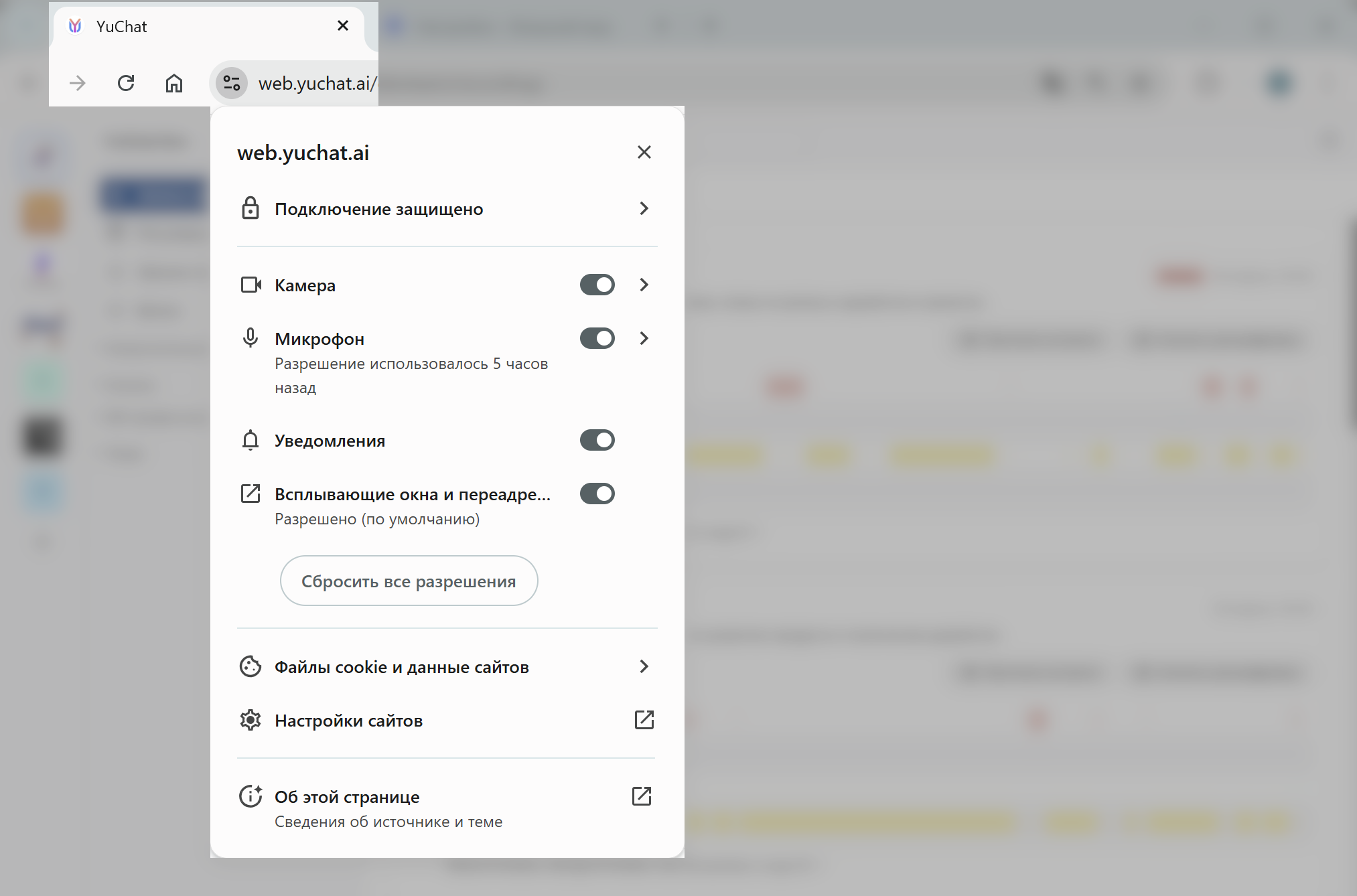
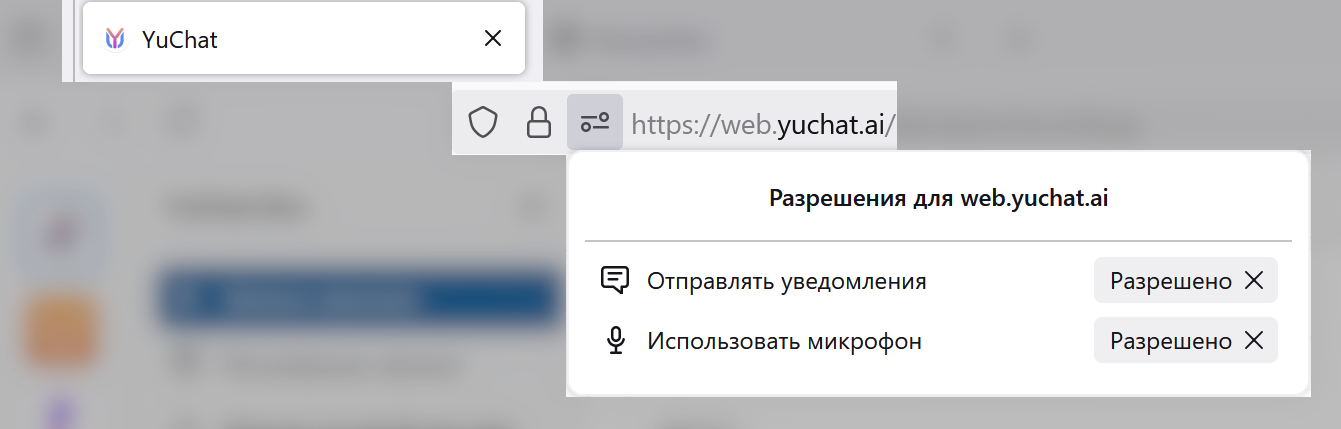
To receive notifications in the web version, you need to grant the appropriate permission to the browser. As a rule, it is enabled by the button to the left of the address bar (the "Page Information" icon).
- Chrome
- Firefox
How to enable notifications in desktop version of the application?
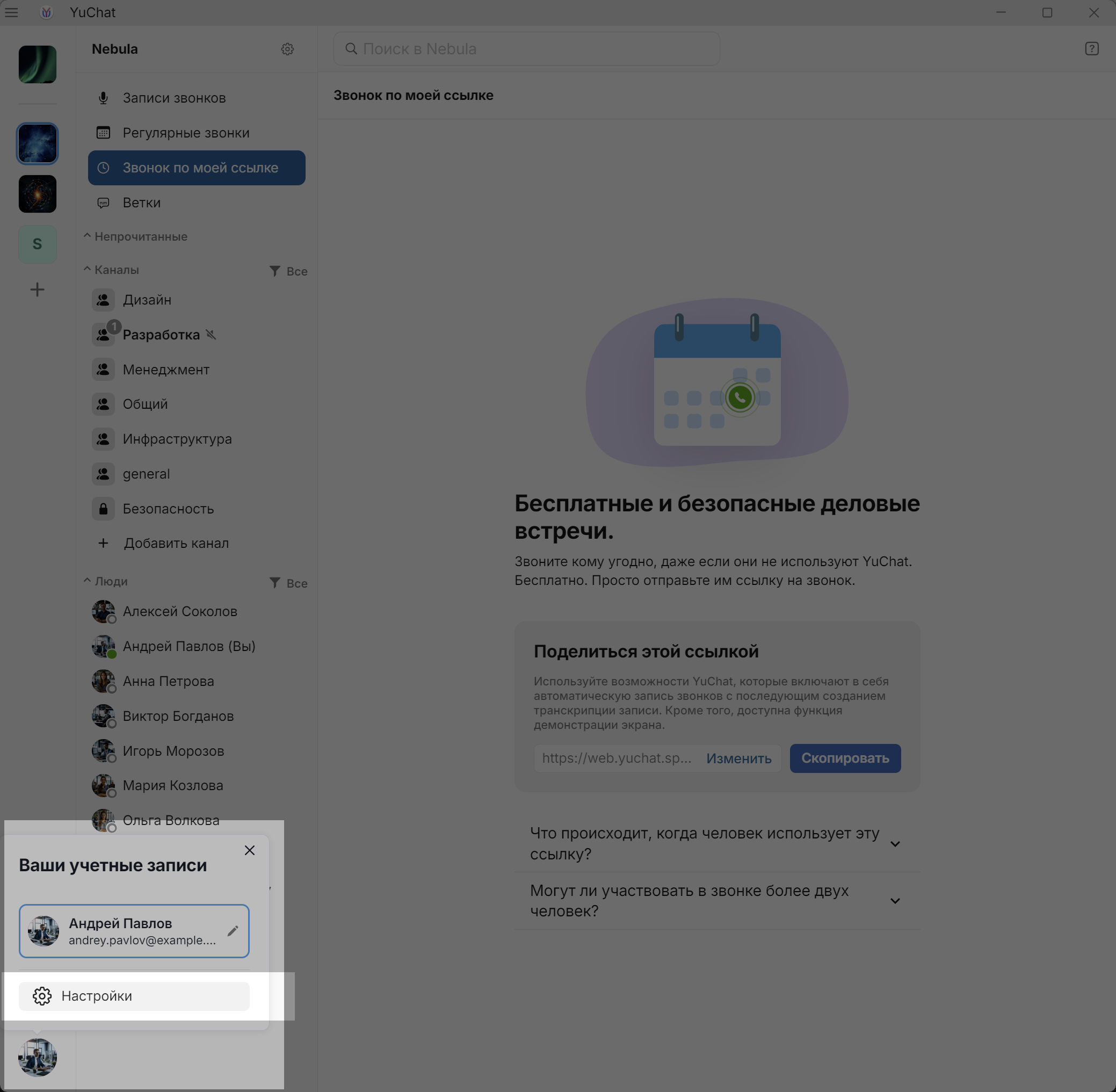
- Open application settings by clicking on your avatar in the lower left corner of the application
- Click Settings.
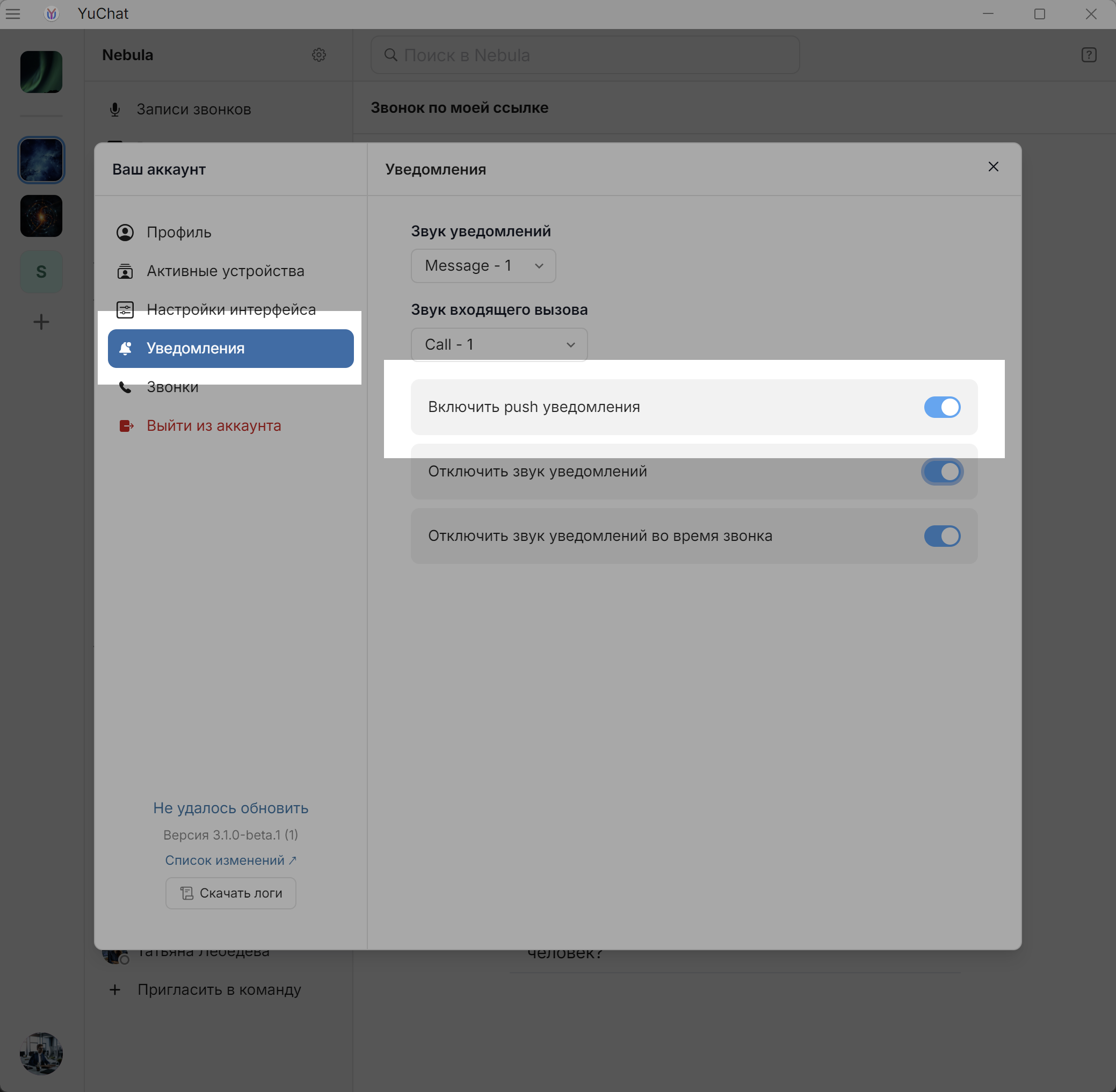
- Open the Notifications tab
-
Make sure that the Enable push notifications option is active

How to configure notifications?
Notifications are configured in general application settings and for each channel or personal chat separately.
To go to general settings and configure notifications:
- Click on the user icon in the lower left corner
- Open the section
 Settings
 - Open the tab
 Notifications
The following notification settings are available in the tab:
- Notification sound
- Incoming call sound
- Enable push notifications
- Disable notification sound
- Disable notification sound during call
To configure notifications for a personal chat:
- Select the chat
- In the opened window, click on the contact status (For example: Online) under their name (upper left corner)
- Open the Notification Settings menu
To configure notifications for a channel:
- Select the channel
- In the opened window, click on the number of channel participants under its name (upper left corner)
- Open the menu Notification Settings
To temporarily disable notifications:
- Right-click on the channel/personal chat in the list
- In the context menu, select Disable Notifications → specify the period:
- For 1 hour
- For 8 hours
- For 1 day
- Forever
- Settings (option available for channels) → quick access to detailed channel notification settings
To enable notifications: repeat steps 1 and 2 and select Enable Notifications
Channels or chats with disabled notifications are marked with the icon 
How to disable notification sound but keep important alerts?
To disable notification sound but not miss important messages in certain channels:
-
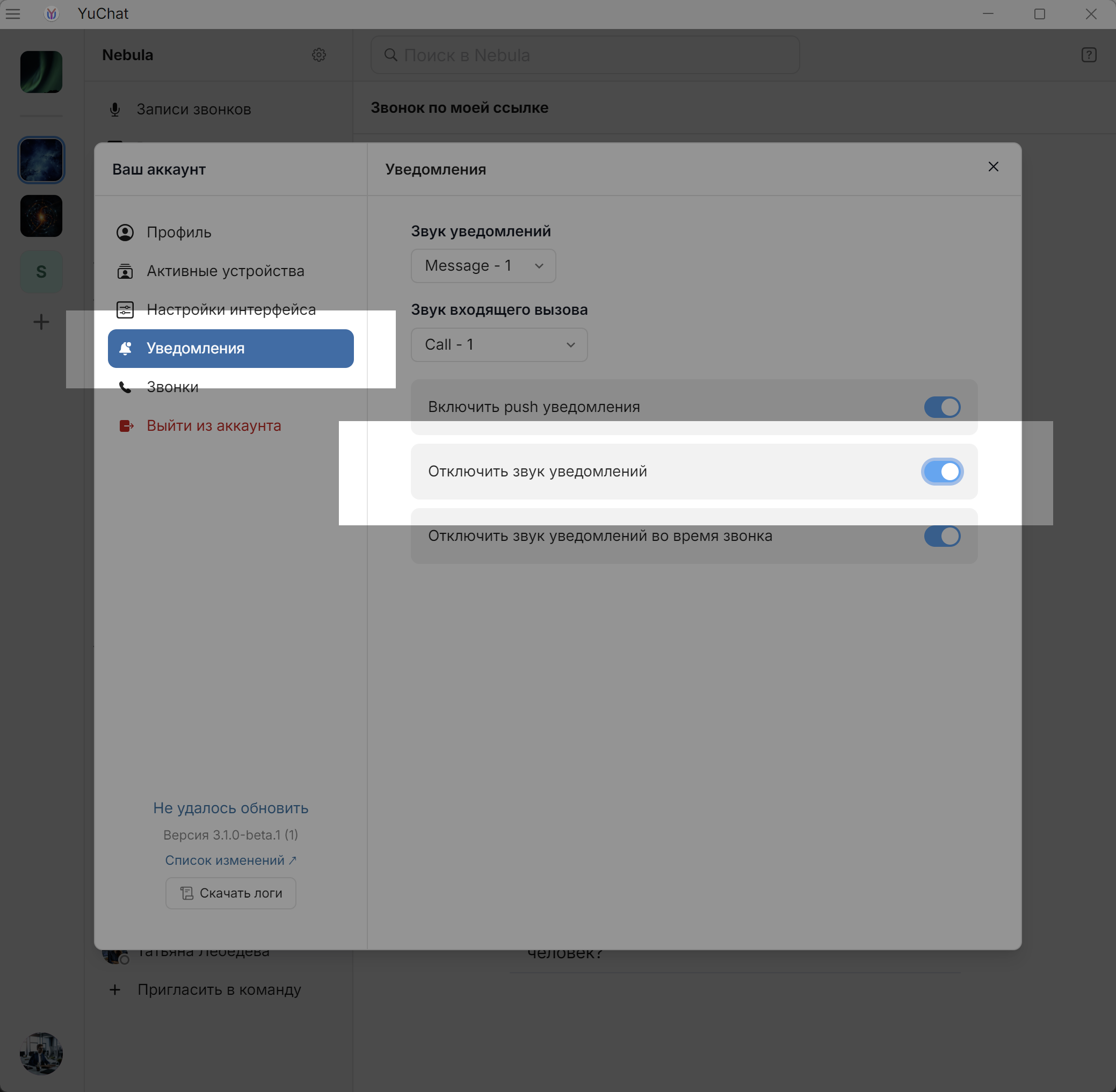
Disable notification sound at the application level by performing the following steps:
-
Open YuChat general settings
or
-
Go to the Notifications section
-
Activate the Disable notification sound checkbox
-
-
Configure notifications in channels from which you want to receive notifications:
-
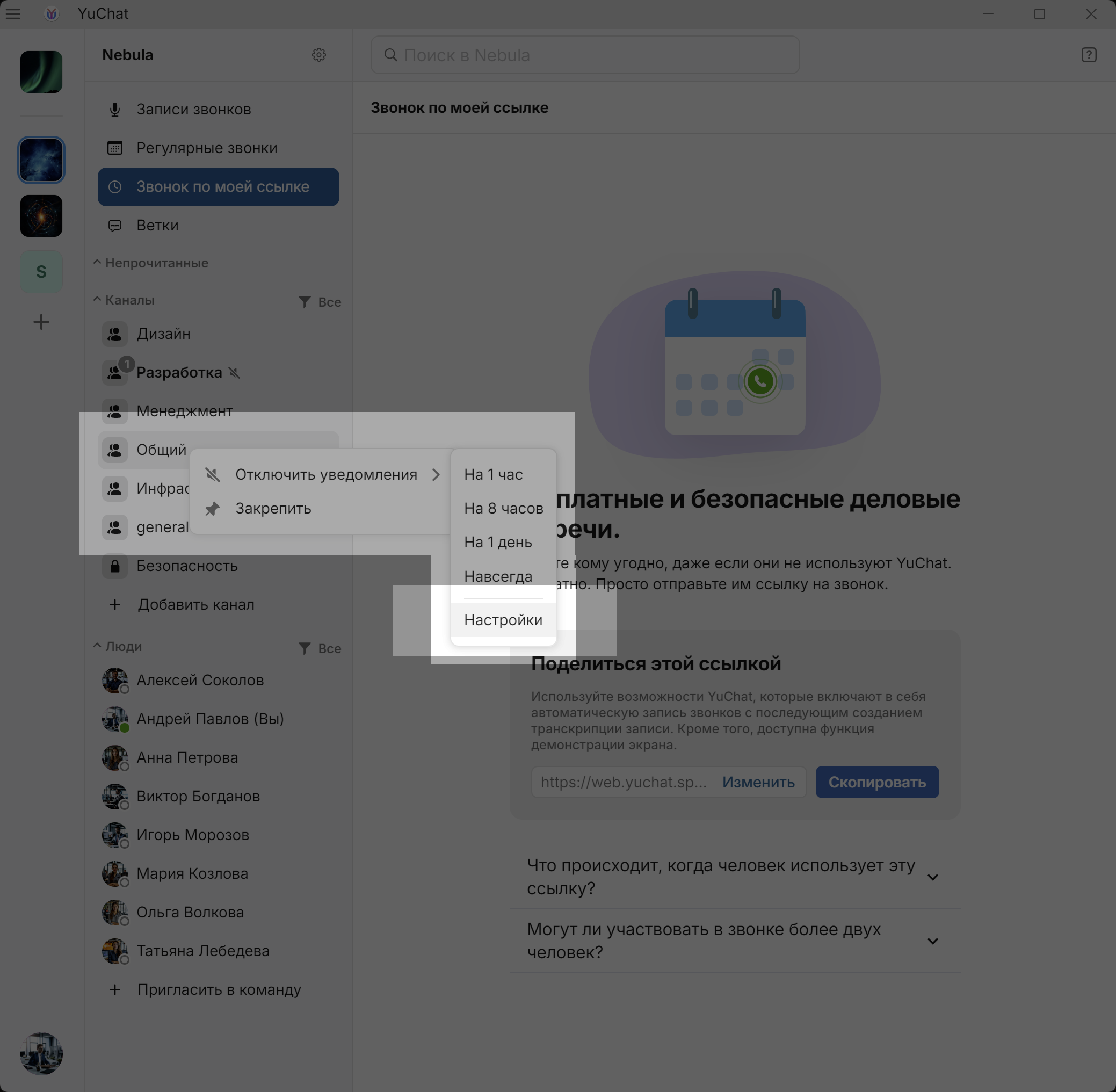
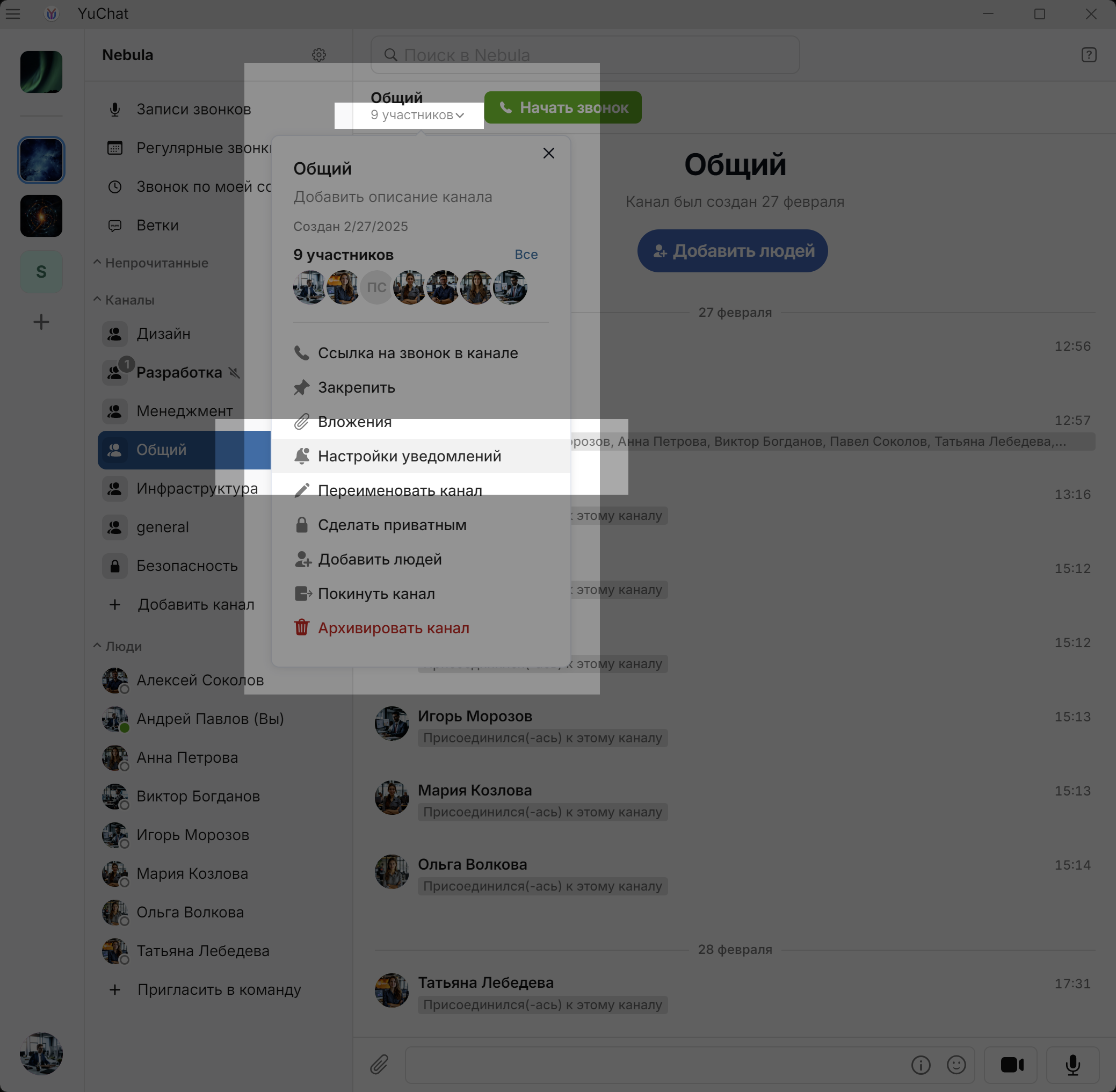
Go to channel notification settings using:
-
Context menu: right-click on the channel in the list
or
-
Channel main menu: open the channel and click on the number of channel participants under its name
-
-
Leave
notifications enabled for mentions in the channel and for personal mentions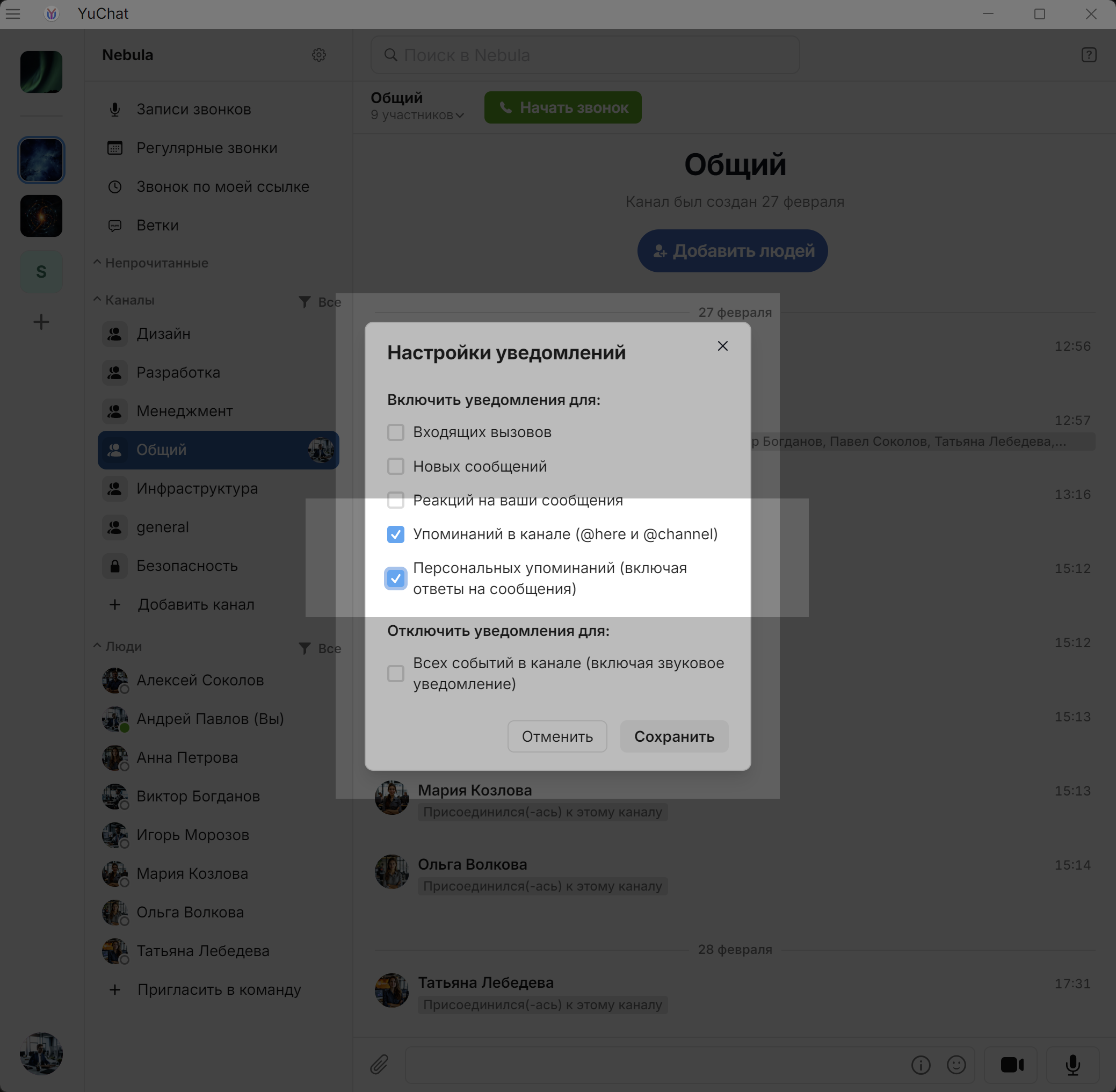
-
-
Disable notifications for other channels.
-
In operating system settings in the Notifications section, find YuChat and configure notifications as you wish, for example, showing banners without sound.
Now you will only see notification banners if you are mentioned in certain channels.
How to log in on mobile devices (installation inside company perimeter)?
Login on mobile devices is performed only through the "Corporate Login" button with specifying a host like yuchat.company.com
How to log in through desktop client (installation inside company perimeter)?
Before authorization, you need to click on "Change Server URL" and specify a host like https://yuchat.yourcompany.com
Why can't I establish a connection in a call?
To create a call or join an existing call, applications need access to microphone and camera on the device. Usually these permissions are granted automatically, but sometimes the user needs to explicitly allow such access at the operating system level. Detailed information on how to allow access to devices is in device configuration documentation.
Different scenarios are possible in the user interface:
- When establishing connection, the application immediately disconnects from the call
- When establishing connection, you see the "Connecting" state, but connection does not occur
WebRTC Dump Collection
WebRTC dump is an archive containing diagnostic data about an audio or video conference. May be required for analyzing problems that occurred during a call.
To collect WebRTC dump, you need to use the web version of YuChat application in Chrome browser, as well as Chrome's internal debugging page
- Open the web version of YuChat in Chrome browser
- In a new browser tab, in the address bar enter
chrome://webrtc-internals/and press Enter - On the opened page, click the button «Create Dump»
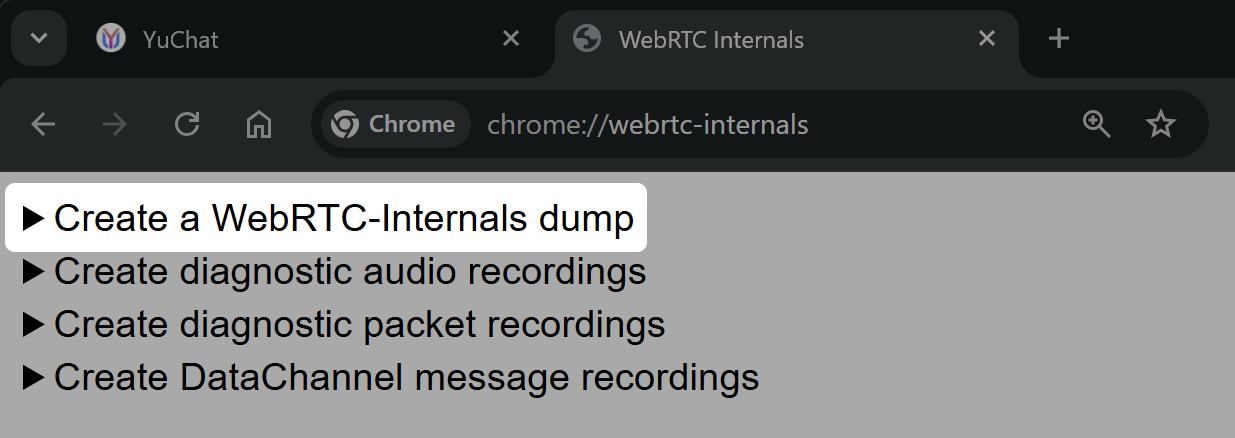
- Dump recording will start immediately after clicking the button - the page will collect information about all active WebRTC connections
- Return to the YuChat tab and reproduce the problematic situation (make a call or join an existing one)
- After completing diagnostics, go back to the
chrome://webrtc-internals/page and click the button«Download the Dump»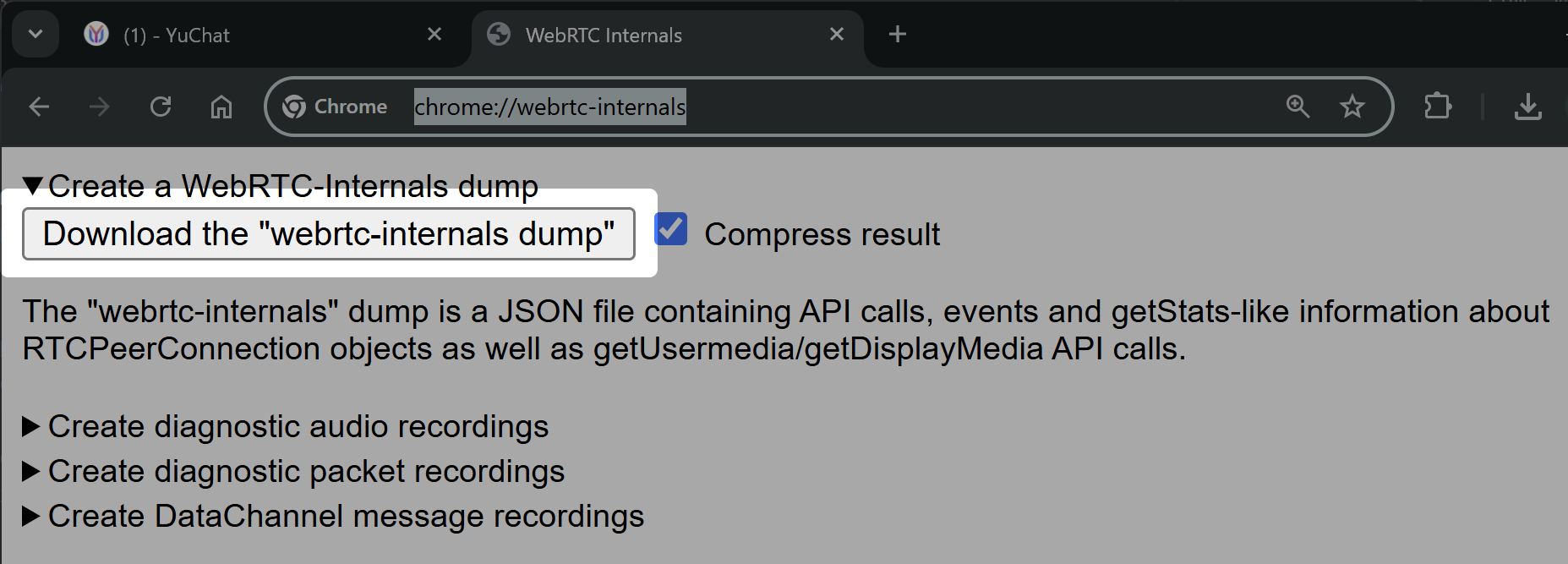
- Send the saved file to technical support
Currently, WebRTC dump collection is only available through Chrome browser